
From Idea to Code - Building Rummy with Flutter - Part 1

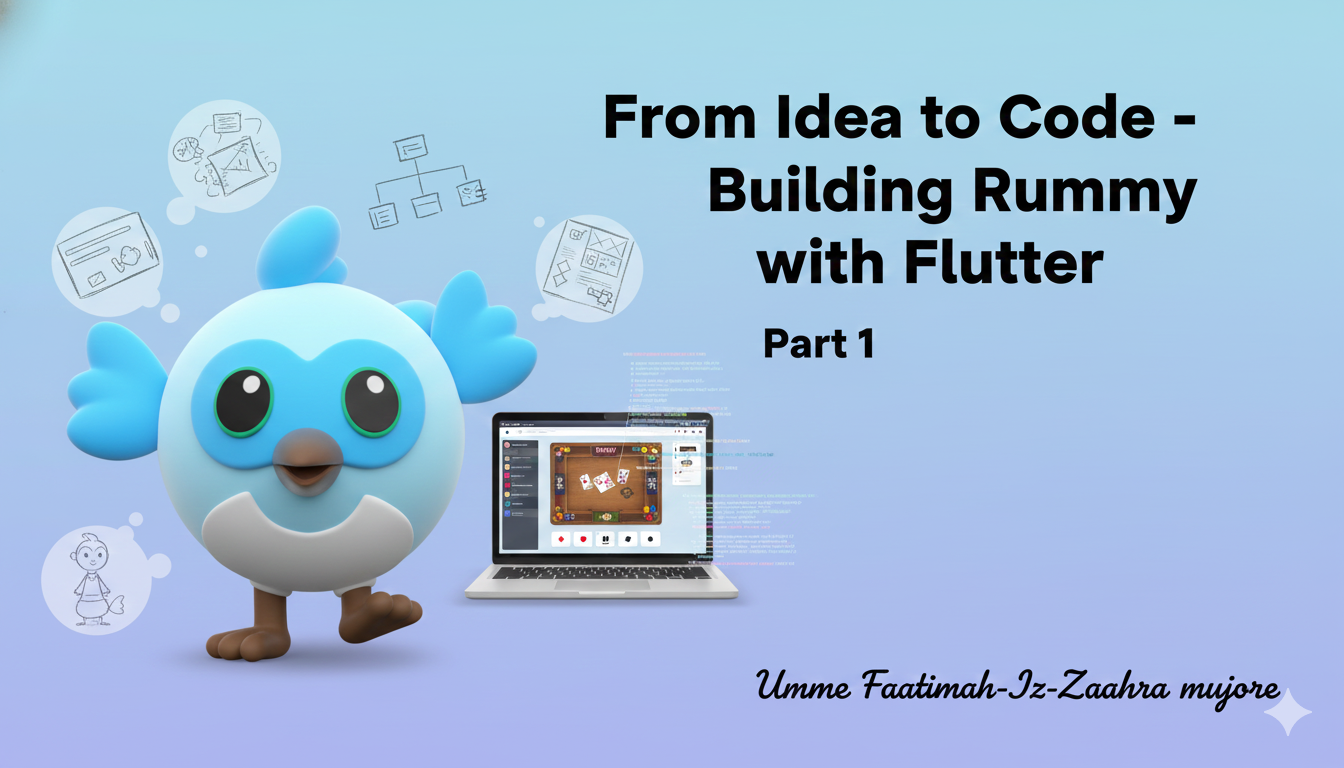
This project stems from enjoying playing rummy with friends. So I thought, why not turn this into a mobile game?
Building this game wasn't an easy process because I was initially unsure of the direction I wanted to take. At first, I started by building the UI and also tried a TDD approach, but in this blog post, I will only be breaking things down by screen, and we will be integrating the logic as we go.
Okay, let us skip the talking and get into code.
The app and Sample Code
You can find the app on the App Store here: IO Rummy App
You can find the complete source code here: flutter_rummy repo
The app structure
The app is primarily composed of 2 main screens
- Home Screen
- Game Screen
Building the Home Screen
The Home Screen is simple. It welcomes the user and asks them to enter their name.
The UI setup
To have a modern look, I have used a background gradient and some animation to make it pop.
  @override
  Widget build(BuildContext context) {
    return Scaffold(
      backgroundColor: const Color(0xFFF5F6FA),
      body: SafeArea(
        child: Container(
          decoration: BoxDecoration(
            gradient: LinearGradient(
              begin: Alignment.topLeft,
              end: Alignment.bottomRight,
              colors: [
                const Color(0xFFF5F6FA),
                const Color(0xFFE8EAF6),
              ],
            ),
          ),
          child: Center(
            child: SingleChildScrollView(
              padding: const EdgeInsets.all(24),
              child: FadeTransition(
                opacity: _fadeAnimation,
                child: SlideTransition(
                  position: _slideAnimation,
                  child: Column(
                    mainAxisAlignment: MainAxisAlignment.center,
                    children: [
                      Text(
                        'Welcome!',
                        style: TextStyle(
                          fontSize: 36,
                          fontWeight: FontWeight.bold,
                          color: Color(0xFF2C3E50),
                          letterSpacing: 1.2,
                        ),
                      ),
                      // ... Lottie animation and other widgets ...

                      // Name Input
                      Container(
                        decoration: BoxDecoration(
                          borderRadius: BorderRadius.circular(16),
                          boxShadow: [
                            BoxShadow(
                              color: Colors.black.withOpacity(0.04),
                              blurRadius: 8,
                              offset: Offset(0, 2),
                            ),
                          ],
                        ),
                        child: TextField(
                          controller: _playerNameController,
                          textAlign: TextAlign.center,
                          style: TextStyle(
                            fontSize: 18,
                            fontWeight: FontWeight.w600,
                            color: Color(0xFF2C3E50),
                          ),
                          decoration: InputDecoration(
                            hintText: 'Player Name',
                            // ... styling ...
                          ),
                        ),
                      ),

                      // ... Join Button ...
                    ],
                  ),
                ),
              ),
            ),
          ),
        ),
      ),
    );
  }
To achieve this look:
- The entire screen is wrapped in a
Containerwith aBoxDecoration - We use
LinearGradientthat flows from top left to bottom right, using soft colors, to create a nice feel. FadeTransitionandSlideTransitionis used to animate the content when the screen loads.
Managing state and animations
Since we have animations and text input, we need a stateful widget.
class _HomeScreenState extends State<HomeScreen> with SingleTickerProviderStateMixin {
  final TextEditingController _playerNameController = TextEditingController();
  late AnimationController _animationController;
  late Animation<double> _fadeAnimation;
  late Animation<Offset> _slideAnimation;
  @override
  void initState() {
    super.initState();
    _playerNameController.text = "Player ${Random().nextInt(1000)}";
    _animationController = AnimationController(
      vsync: this,
      duration: const Duration(milliseconds: 800),
    );
    _fadeAnimation = CurvedAnimation(
      parent: _animationController,
      curve: Curves.easeIn,
    );
    // ... slide animation setup ...
    _animationController.forward();
  }
  @override
  void dispose() {
    _playerNameController.dispose();
    _animationController.dispose();
    super.dispose();
  }
initState: we initialise the controller and start the animationdispose: we clean up the controllers to prevent memory leaks
The logic
When the user clicks "Join Game", we simply push the user to the GameScreen. We pass the player's name to this game screen so that we can identify them.
  void _joinGame() {
    String name = _playerNameController.text.trim();
    if (name.isEmpty) {
      name = "Player ${Random().nextInt(1000)}";
    }

    Navigator.of(context).push(
      MaterialPageRoute(
        builder: (_) => GameScreen(
          localPlayerName: name,
          startWithTutorial: false,
        ),
      ),
    );
  }
Building the Game Screen
And now this is where things get interesting.
The models
Before we draw a single card, we need to define what a card is. Therefore, in our card_model.dart, we define the following
enum Suit { HEARTS, DIAMONDS, CLUBS, SPADES }

class Card {
  final int rank; // 2..10, and A, K, Q, J
  final Suit suit;
  const Card({required this.rank, required this.suit});
}
I have also created a deck_model.dart where I am able to create the 52 cards on deck, and make them shuffle. There is another method like draw(), which will allow a user to pick a card from the deck.
The game engine
The EngineController is where we handle the logic of the game.
What does it actually do?
- Setup method: It creates the deck, shuffle, and deals cards to all players
- Management of turns: It checks whose turn it is by using the
currentPlayerIndex - Piles: It manages the stock (face down) and discard (face up) piles
- Bot Logic: There is an algorithm (backtracking) to check what the computer opponent should do.
Therefore in engine_controller.dart
class EngineController {
  // ... state variables ...

  // assign random cards to players.
  // setup card on table
  // TODO: dont use seed in Production
  void setup(int cardsPerPlayer, int decksUsed, int? seed) {
    if (_state.players.isEmpty) throw StateError("No players");
    setupCardOnGameStart(decksUsed);
    setupPlayerCards(cardsPerPlayer);
    setupCardOnDesk();
    currentPlayerIndex = 0;
    _hasDrawnThisTurn = false;
    winnerPlayerId = null;
    phase = GamePlayState.playing;
  }

  void setupCardOnGameStart(int decksUsed, [int? seed]) {
    stock = Deck.standard(decks: decksUsed);
    stock.shuffle(seed);
  }
  void setupPlayerCards(int cardsPerPlayer) {
    hands
      ..clear()
      ..addEntries(
        _state.players.map((player) => MapEntry(player.id, <Card>[])),
      );
    for (var i = 0; i < cardsPerPlayer; i++) {
      for (final player in _state.players) {
        hands[player.id]!.add(stock.draw());
      }
    }
  }
  void setupCardOnDesk() {
    discardCard
      ..clear()
      ..add(stock.draw());
  }
}
Connecting the Logic to the UI
Now, how does the GameScreen actually use this?
In the game screen, we hold a reference to this controller. When the screen loads, we initialise the engine.
  void _setupGame() {
    if (!mounted) return;
    final gameState = _startController.gameState;
    if (gameState == null) {
      debugPrint('Cannot start game: gameState is null.');
      return;
    }
    setState(() {
      _engineController = EngineController(gameState: gameState);
      final e = _engineController!;
      e.setup(_cardsPerPlayer, _decksUsed, _seed);
      _arrangedHand = List.from(e.handOf(_localPlayerId));
      _isGameSetup = true;
      _isWaitingForOpponent = false;
      _hasDrawnCurrentTurn = false;
      // ... tutorial logic ...
    });
  }
Handling of user interaction
When you tap the deck to draw a card, we call the engine and then setState to show the new card.
void _drawFromStock() {
    // 1. Validate: Can we draw?
    final e = _engineController;
    if (e == null || !e.canDrawFromStock) return;
    setState(() {
      // 2. Action: Tell engine to draw
      e.playerDrawFromStock();
      // 3. UI: Update our local hand view
      final newHand = e.handOf(_localPlayerId);
      // ... logic to animate the new card into _arrangedHand ...
    });
  }
This pattern, action -> engine update -> setstate, is the heart of the game. The engine keeps the truth and the UI reflects it.
Rendering the hand
We want the cards to look like they are being held in a hand. We use a GridView to display the cards.
  Widget _buildCardGrid(bool isLocalTurn, GamePlayState phase) {
    return GridView.builder(
      shrinkWrap: true,
      physics: const NeverScrollableScrollPhysics(),
      padding: EdgeInsets.zero,
      gridDelegate: SliverGridDelegateWithFixedCrossAxisCount(
        crossAxisCount: _cardsPerRow,
        childAspectRatio: _cardWidth / _cardHeight,
        crossAxisSpacing: 8,
        mainAxisSpacing: 8,
      ),
      itemCount: _arrangedHand.length,
      itemBuilder: (context, index) {
        return _buildDraggableCard(index, isLocalTurn, phase);
      },
    );
  }
And each card is made draggable so you can move it around:
Widget _buildDraggableCard(int index, bool isLocalTurn, GamePlayState phase) {
    final card = _arrangedHand[index];
    final isSelected = _selectedCard == card;
    return Draggable<int>(
      data: index,
      feedback: Material(
        color: Colors.transparent,
        child: _buildCardWidget(card, isSelected: isSelected, elevation: 12.0),
      ),
      childWhenDragging: Opacity(
        opacity: 0.3,
        child: _buildCardWidget(card, isSelected: false),
      ),
      onDragStarted: () {
        setState(() {
          _draggedIndex = index;
          _dragCard = card;
        });
      },
      onDragEnd: (_) {
        setState(() {
          _draggedIndex = null;
          _dragCard = null;
        });
      },
      child: DragTarget<int>(
        builder: (context, candidateData, rejectedData) {
          return GestureDetector(
            onTap: isLocalTurn && phase == GamePlayState.playing
                ? () {
                    // ... selection logic ...
                    setState(() {
                      if (_selectedCard == card) {
                        _selectedCard = null;
                      } else {
                        _selectedCard = card;
                      }
                    });
                    // ...
                  }
                : null,
            child: _buildCardWidget(card, isSelected: isSelected),
          );
        },
        onWillAccept: (data) => data != null && data != index,
        onAccept: (draggedIndex) {
          _swapCards(draggedIndex, index);
        },
      ),
    );
}- Draggable: Allows the user to pick up a card. We use
feedbackand achildWhenDragging as parameters. - DragTarget: Allows the card to be dropped onto another card to swap positions.
The "Winning" Logic
This was the hardest part. How do we know if a player has won? They need to form sets or runs. I created a MeldController that uses a backtracking algorithm to check if all the cards in a hand fit into a valid melds.
  bool isAllMeldsExact(List<Card> cards, {bool allowPairs = false}) {
    if (cards.isEmpty) return true;
    if (cards.length < 2) return false;
    // --- build candidate melds from current cards ---
    final candidates = <List<Card>>[];
    // sequences (same suit, consecutive, len >= 3)
    for (int k = 3; k <= cards.length; k++) {
      for (final g in _combinations(cards, k)) {
        if (isSequenceSameSuit(g)) candidates.add(g);
      }
    }
    // sets (3/4-of-a-kind, different suits)
    // ... (finding sets logic) ...
    // --- backtracking: try to cover ALL cards with disjoint melds ---
    final used = List<bool>.filled(cards.length, false);
    candidates.sort((a, b) => b.length.compareTo(a.length)); // try longer first
    bool dfs(int idx) {
      while (idx < cards.length && used[idx]) idx++;
      if (idx == cards.length) return true;
      final target = cards[idx];
      for (final m in candidates) {
        if (!m.contains(target)) continue;
        // ... check if meld can be used ...
        // ... mark used ...
        if (dfs(idx + 1)) return true;
        // ... backtrack ...
      }
      return false;
    }
    return dfs(0);
  }
And that's it!
Next I will be showing you how we can use Firebase and flutter_ai as a package to make our opponent more intelligent.
Stay tuned!
About Me
I am Zaahra, a Google Women Techmakers Ambassador who enjoy mentoring people and writing about technical contents that might help people in their developer journey. I also enjoy building stuffs to solve real life problems.
To reach me:
LinkedIn: https://www.linkedin.com/in/faatimah-iz-zaahra-m-0670881a1/
X (previously Twitter): _fz3hra
GitHub: https://github.com/fz3hra
Cheers,
Umme Faatimah-Iz-Zaahra Mujore | Google Women TechMakers Ambassador | Software Engineer